Tuesday, 23 November 2010

Drupal and SQL Server

One of the more “out of left field” projects I’ve worked on recently involved creating a sample solution that demonstrates how you can integrate Drupal 7 with SQL Server. For those who don’t know, Drupal is an open source content management system that’s widely used on Linux/Apache sites. In recent times, Microsoft has sought to widen the appeal of its Web development platform by adding support for applications and technologies normally used by LAMP (Linux, Apache, MySQL, and PHP) developers, and a version of Drupal that runs in IIS on Windows and which uses SQL Server as its underlying content database is one outcome of that initiative.

Anyway, Content Master was asked to create two sample Drupal solutions to showcase the advantages of using SQL Server with Drupal – one that integrates Drupal with SQL Server Reporting Services, and another that incorporates location-based content with SQL Server’s spatial data support. I ended up working on this project together with a couple of colleagues named David Miles and James Millar – I designed and implemented the SQL Server reports as well as the spatial data and Bing Maps functionality, and David and James handled the PHP programming and Drupal-specific scripting elements of the solutions.

You can view more details of the Reporting Services solution and the Spatial Data solution on the Content Master blog.

Enjoy!

Wednesday, 13 October 2010

Using a Transparent Background in Reporting Services

While watching the Japanese Formula 1 Grand Prix on Sunday, it struck me that TV sports broadcasters make a lot of use of transparent overlays when showing scores, results, times, statistics, or whatever. In the case of the Grand Prix, the driver rankings in the world championship were displayed on a semi-transparent overlay, behind which the live footage of the race circuit could be seen.

So, naturally I started to wonder how I could achieve a similar visual effect in a Reporting Services report, like this:

Product Sales Report

My first thought was to look at the BackgroundColor property of the Tablix data region and set the Transparency level. However, when I looked at the color picker control for the property, this is what I saw:

ColorProperties

Note that the Transparency control is disabled. It turns out you can only set a transparency level for gauges and charts in Reporting Services – not for shapes or data regions. So, I needed to find an alternative approach.

The answer I came up with was to create a semi-transparent .png graphic, and use it as the background image for the data region. I created this with PowerPoint, though of course you can use any graphics tool you like. I also used PowerPoint to find a suitable clipart image to use as the background for the report (on which the semi-transparent data region will be overlaid). In this case, I’m using the Adventure Works Cycles sample data, so a photo of a cyclist seems like a good choice.

PowerPoint

You can take one of two approaches when it comes to sizing the semi-transparent image – you can make an extremely small image and then set the BackgroundRepeat property of the data region to Repeat, or you can make it bigger than the data region is ever likely to be and set the BackgroundRepeat property to Clip (or Repeat – it won’t matter since the image will be bigger than the data region anyway!). I found that PowerPoint tends to add some whitespace to the edge of a shape when you save it as a .png image, which showed up when repeating the background image, so I went with a large background image. Of course, had I used a more comprehensive graphics tool,  could have easily avoided this issue and got away with repeating a smaller image.

To embed the images to the report, I added them to the Images folder in the Report Data pane in Report Designer.

ReportData

Then I set the BackgroundImage property of the tablix data region in which the report data is displayed, like so:

TablixProperties

I’ve also used the semi-transparent image as the background for the report title textbox, which appears above the tablix data region.

The next challenge was to apply the cyclist image to the background of the report, and ensure that the layout of the report overlays the data neatly. If you have a small data set with a known number of records(for example, in a “top 10 products” report), then this is relatively straightforward. However, for a dataset with an unknown size, the data region will be resized dynamically, and automatic pagination may break the report into multiple pages. In my case, I want to ensure that the report title appears on all pages, and that the table of data has a suitable space above and below it on all pages.

To accomplish this, I added a page header and footer to the report and put the report title in the header. This ensures that if the report is paginated, the table on the second (and all subsequent pages) doesn’t start right at the top of the page. Similarly, the report footer ensures that there’s always a space after the table – it never goes all the way to the bottom of the page. I set the BackgroundImage of the report to the cyclist picture (clipped so it doesn’t repeat), and I set the InteractiveSize property of the report so that when viewed in the browser, the report has a maximum size that will keep the tablix well within the background image area. This was made tricky by the fact that Report Designer does not show the background image of the report in design view, so I had to preview the report and assess the right size through trial and error.

Report Designer

Obviously, the report size is optimized for interactive viewing, and though you can set the PageSize property of the report to an appropriate size for any other renderers you plan to use, my experience is that using background images and contrived layouts in reports you intend to render to a different format can result in some pretty horrible looking exported reports. One solution I have used in the past for this is to create the version that’s tailored for online viewing, and include a link to an offline version that has more conventional formatting for printing or exporting.

You can download the sample report I created from here. You’ll also need SQL Server 2008 R2 with Reporting Services (you can get the free Express edition from here) and the AdventureWorksDW2008R2 sample database (which you can get from here).

del.icio.us Tags: ,

Saturday, 21 August 2010

Geocoding (and reverse-geocoding) with Bing Maps

In previous posts, I’ve explored how to use Bing Maps with SQL Server spatial data. In this post, I want to explore the Bing Maps control a little more. Specifically, I want to look at how to use the Bing Maps control to geocode a street address (that is, find the latitude and longitude coordinates of the address), and how to reverse-geocode a spatial location to find the corresponding street address.

The first step in building a Web page that uses the Bing Maps control to geocode an address, is to add a <div> tag to host the map control and use the page body’s onload event to call a JavaScript function that loads the map – like this:

<head>

<!-- add a reference to the Virtual Earth map control -->
<script type="text/javascript"
        src="
http://dev.virtualearth.net/mapcontrol/mapcontrol.ashx?v=6.3">
</script>

<script type="text/javascript">
    function GetMap() {
        map = new VEMap('mapDiv');
        map.LoadMap();
    }
</script>

</head>
<body onload="GetMap()">

    <div id="mapDiv" style="position:relative; width:600px; height:400px;">
    </div>
</body>

Next, you need a textbox so that users can enter the address they want to geocode, a button they can click to geocode the address, and two textboxes to show the resulting latitude and longitude coordinates.

Address:<input id="txtAddress" type="text" style="width:340px" />
        <input style="width:60px" id="btnFind" type="button" value="Find" onclick="return btnFind_onclick()" />
Latitide:<input id="txtLat" type="text" style="width:400px" />
Longitide:<input id="txtLong" type="text" style="width:400px" />

Note the onclick property of the button control, this calls the function that uses Bing Maps to geocode the address. Here’s the code to do that:

function btnFind_onclick() {
    //Geocode the address to find the Lat/Long location
    map.Geocode(document.getElementById("txtAddress").value, onGeoCode, new VEGeocodeOptions())
}

Note that the code in the btnFind_onclick function calls the Geocode method of the map control, specifying the address to be geocoded, the name of the callback function to use to process the results (onGeoCode), and a VEGeocodeOptions object that ensures the user is shown a list of options when the address has multiple possible matches. The calback function looks like this:

function onGeoCode(layer, resultsArray, places, hasMore, veErrorMessage) {
    var findPlaceResults = null;

    // verify the search location was found
    if (places == null || places.length < 1) {
        alert("The address was not found");
    }
    else {
        // we've successfully geocoded the address, so add a pin
        findPlaceResults = places[0].LatLong;
        addPinToMap(findPlaceResults);
    }
}

The callback function is called when the geocode method returns, and assuming a location has been found the JavaScript calls the following addPinToMap function to display the results:

function addPinToMap(LatLon) {
    // clear all shapes and add a pin
    map.Clear()
    var pushpoint = new VEShape(VEShapeType.Pushpin, LatLon);
    map.AddShape(pushpoint);

    // center and zoom on the pin
    map.SetCenterAndZoom(LatLon, 13);

    // display the Lat and Long coordinates
    document.getElementById("txtLat").value = LatLon.Latitude;
    document.getElementById("txtLong").value = LatLon.Longitude;
}

This adds a pin to the map and centers and zooms to ensure it can be seen clearly. It then displays the latitude and longitude in the textboxes defined earlier.

We now have all the code required to geocode an address, but  what about the opposite? Ideally, we also want the user to be able to click a location on the map and reverse-geocode the point that was clicked to find the address.

Of course, the Bing Maps map control already responds to user clicks, so our application will use right-clicks to enable users to specify a location. We’ll do this by attaching an onclick event handler to the map control in the GetMap function (which you will recall is called when the page loads to display the map), and then checking for a right-click before reverse-geocoding the clicked location:

// added to the GetMap function
map.AttachEvent("onclick", map_click);

function map_click(e) {
    // check for right-click
    if (e.rightMouseButton) {
        var clickPnt = null;

        // some map views return pixel XY coordinates, some Lat Long
        // We need to convert XY to LatLong
        if (e.latLong) {
            clickPnt = e.latLong;
        } else {
            var clickPixel = new VEPixel(e.mapX, e.mapY);
            clickPnt = map.PixelToLatLong(clickPixel);
        }

        // add a pin to the map
        addPinToMap(clickPnt)

        //reverse-geocode the point the user clicked to find the street address
        map.FindLocations(clickPnt, onReverseGeoCode);
    }
}

This code finds the latitude and longitude of the clicked location (in some views, the map control uses X and Y pixel coordinates so we need to check for that), displays a pin on the map at the clicked location, and then uses the FindLocations method of the map control to find the address. A callback function named onReverseGeoCode is used to process the results:

function onReverseGeoCode(locations) {
    // verify the search location was found
    if (locations == null || locations.length < 1) {
        document.getElementById("txtAddress").value = "Address not found";
    }
    else {
        // we've successfully found the address, so update the Address textbox
        document.getElementById("txtAddress").value = locations[0].Name;
    }
}

The completed application looks like this:

BingGeocoder

You can try the page out for yourself here, and you can download the source code from here.

del.icio.us Tags:

Tuesday, 8 June 2010

Creating Multi-Sheet Workbooks with SQL Server 2008 R2 Reporting Services

One thing I’ve learned in over ten years of creating database and reporting solutions, is that no matter how dynamic and interactive you make online reports, no matter how much you embed live reporting into the user interface of applications, and no matter how funky a dashboard you design; many executives don’t believe data is real unless it’s in a spreadsheet. That’s why one of the most used features of Reporting Services is the ability to render reports in Excel format.

However, I recently encountered a situation where my company hosts a Luminosity learning management system, and uses SQL Server Reporting Services to generate reports of student activity in Excel format. The number of students has grown substantially over time, and we hit an unforeseen problem – The Excel 2003 format that Reporting Services renders the reports in supports a maximum of 65,536 rows per worksheet, and the report (which shows students and all training they have completed) has grown to exceed this limit.

After some head scratching, I investigated enhanced new page-break support in SQL Server 2008 R2 and came up with a solution that works, and which can enhance the ability to create complex reports in Excel format for those pesky executives – so I thought I’d share it here.

Let’s imagine your executives want a report in Excel format that lists every customer, along with their contact details. If you have less than 65,537 customers, you could design a report that simply lists them in a worksheet, but if you have more customers than that (or you want to include headers, spaces, or other elements in your report that will use rows when rendered to Excel), then you’ll need a better solution. Ideally, you might want to create something like this – an Excel workbook with multiple worksheets, consisting of a generic “cover page” and a tab for each letter of the alphabet so that you can view customers by last name.

Workbook

You can download a copy of this workbook from here.

Each worksheet in the workbook lists customers with a last name that begins with the letter on the corresponding worksheet tab, as shown here:

Customers-A

To create this report, I used the AdventureWorks2008R2 sample database (which you can download from here) and the following Transact-SQL query:

SELECT Title, FirstName, LastName, AddressLine1, City, StateProvinceName, PostalCode, CountryRegionName
FROM Sales.vIndividualCustomer

The report includes a tablix data region that includes a details grouping (in which all fields are displayed) and a grouping based on the following expression (which returns the first character of the LastName field in upper-case):

=ucase(left(Fields!LastName.Value, 1))

I also added an image and a textbox to the report, and placed them above the tablix data region as shown here:

ReportDesign

To create the page breaks that generate the worksheets when rendered to Excel,  I’ve used some of the new page-break support in SQL Server 2008 R2. First of all, I’ve set the report’s InitialPageName property to Customer Addresses, as shown here:

ReportProperties

This property defines the default name for the first page of the report (or for all pages if no explicit page breaks with page names are defined). That’s why in the Excel workbook, the “cover page” has this name on its worksheet tab (if the InitialPageName property wasn’t set, the worksheet tab would show the the report name).

Next, I created a page break at the start of the tablix as shown here:

TablixProperties

This causes the data in the table to be displayed on a new page, effectively defining the “cover page” as “everything before this”.

Finally, I used the properties of the grouping I defined earlier to create a page break between each instance of the grouping, and apply a page name based on the same expression used to define the grouping. In other words, there will be a page for each first character of the LastName field, and the page name for this page will be the grouping character.

GroupProperties

You can download the complete solution from here. You’ll need to have an instance of SQL Server 2008 R2 with the AdventureWorks2008R2 database (the DataSet in the report assumes that this is in the default instance of SQL Server 2008 R2 on the local computer).

Exporting this report to Excel creates the desired multi-sheet workbook, with a tab for each initial character of the last name, and a “cover page”.

Hopefully, you can see from this article how easy it is to create multi-sheet workbook reports that will add value to your reporting solutions.

Saturday, 23 January 2010

First Steps with the Silverlight Bing Maps Control

A while back, I posted an article about displaying spatial data from SQL Server with what was then called the Virtual Earth Maps control. The article demonstrated an application that retrieves information about locations visited by a toy stuffed bear named Beanie, and displays those locations on a map. Since then, the Virtual Earth Map control has been renamed Bing Maps, and a Silverlight version of the map control is now available – so naturally, the time has come to update the Beanie Tracker application.

Unlike the Javascript version of the Bing Maps control, to use the Silverlight Bing Maps control, you need to sign up at the Bing Maps Account Center and obtain a key.  However, this is a straightforward process (and free!). Once you have a key, you can create Silverlight applications that display and manipulate the Bing Maps control. To do this, download and install the Bing Maps control.  Then create a new Silverlight application and add a reference to the assemblies provided with the control as shown here:

Ref

Now that you have a reference to the Map control, you can add its namespace to a XAML UserControl and include a map object in the Silverlight user interface as shown here, referencing the key you obtained from the Bing Maps Account Center:

<UserControl x:Class="BeanieTracker.MainPage"
    xmlns="http://schemas.microsoft.com/winfx/2006/xaml/presentation"
    xmlns:x="http://schemas.microsoft.com/winfx/2006/xaml"
    xmlns:d="http://schemas.microsoft.com/expression/blend/2008"
    xmlns:mc="http://schemas.openxmlformats.org/markup-compatibility/2006"
    xmlns:m="clr-namespace:Microsoft.Maps.MapControl;assembly=Microsoft.Maps.MapControl"
    mc:Ignorable="d" d:DesignWidth="400" d:DesignHeight="500" Width="700" Height="400">
  <Grid x:Name="LayoutRoot">

        <Grid.RowDefinitions>
            <RowDefinition Height="Auto"/>
        </Grid.RowDefinitions>
        <Grid.ColumnDefinitions>
            <ColumnDefinition Width="200" />
            <ColumnDefinition Width="*"/>
        </Grid.ColumnDefinitions>

        <StackPanel Grid.Column="0" Grid.Row="0" Orientation="Vertical">
            <Image Name="imgBeanie" Source="Beanie.jpg"></Image>
            <Button Cursor="Hand" Width="195" Height="25" HorizontalAlignment="Left" Content="Show Locations" x:Name="b1" Margin="2,10,0,1" Click="b1_Click"></Button>
       </StackPanel>

        <m:Map Name="map" Grid.Column="1" Grid.Row="0" CredentialsProvider="YOUR_KEY" Width="475" Height="300" />

    </Grid>
</UserControl>

Adding the map control displays a Bing Maps map in Silverlight user interface, enabling users to view the map and interact with it through it’s built in controls for changing the zoom level or view, and moving around the map. However, to add custom functionality, you need to write some code to manipulate the map control.

The Silverlight map control exposes a number of objects with properties and methods you can control programmatically, though some of the functionality in the Javascript version of the control has not been implemented in the Silverlight version. Unfortunately, the functionality that enables you to import a GeoRSS feed as a ShapeLayer onto the map is not implemented in the Silverlight control, so a simpler version of the Beanie Tracker application is required. In this version, I’ve written code to retrieve the GeoRSS feed, and then parse the XML feed and create a pushpin for each GML pos element, as shown here:

private void b1_Click(object sender, RoutedEventArgs e)
{
     Uri url = new Uri("../Feed.aspx?data=locations", UriKind.Relative);
     WebClient client = new WebClient();
     client.DownloadStringCompleted += new DownloadStringCompletedEventHandler(client_DownloadStringCompleted);
     client.DownloadStringAsync(url);
}

void client_DownloadStringCompleted(object sender, DownloadStringCompletedEventArgs e)
{
     if (e.Error == null)
     {
         StringReader stream = new StringReader(e.Result);
         XmlReader reader = XmlReader.Create(stream);
         string gmlURI = "http://www.opengis.net/gml";

         while (reader.Read())
         {
             if (reader.NodeType == XmlNodeType.Element)
             {
                 if (reader.NamespaceURI == gmlURI && reader.Name == reader.Prefix + ":pos")
                 {
                     string[] loc = reader.ReadInnerXml().Split(" ".ToCharArray());
                     double lat = Double.Parse(loc[0]);
                     double lon = double.Parse(loc[1]);
                     Pushpin p = new Pushpin();
                     p.Location = new Location(lat, lon);
                     map.Children.Add(p);
                 }
             }
         }
     }
}

You can see the resulting application at http://www.graemesplace.com/beanietracker.aspx.

Monday, 4 January 2010

Data-Tier Applications in SQL Server 2008 R2

In a previous post, I discussed some of the new multi-server management capabilities in SQL Server 2008 R2. One of the new features I conspicuously side-stepped covering in that post is the concept of a data-tier application – and that’s what I want to describe in this post.

Data-tier applications provide a useful way to encapsulate all of the logical and physical components of an application that need to be deployed and managed as a unit on a SQL Server instance. For example, consider a typical business application. It probably consists of a number of tiers, including a presentation tier (which might be a Windows Form application or an ASP.NET Web application), a middle-tier (for example a library of .NET assemblies that provide objects to manage the business logic of the application), and a data-tier. The data-tier consists primarily of a logical database (and all the schemas, tables, views, and so on it contains) but it also includes server-level objects (such as any logins that the middle-tier uses to connect to the database server) and the physical database and log files used to store the database.

In the past, deploying or migrating the data-tier of an application has involved examining the database to find its server-level dependencies and physical storage properties, moving the database from its test/staging server to the production server (via backup and restore, SSIS, or a Transact-SQL script to recreate the database schema and data – taking into account any differences in physical storage media), and creating a script to recreate any server-level objects used by the database.

In SQL Server 2008 R2, this task has been simplified through the concept of data-tier applications. Software developers using Visual Studio 2010 will be able to create data-tier applications that encapsulate the entire data tier, or alternatively you can use new wizards in SQL Server Management Studio to create a data-tier application from an existing database, and deploy a data-tier application to a new database.

To create a data-tier application from an existing database, right-click the database you want to package and start the data-tier extraction wizard as shown in the following screenshot.

Picture1

This opens the following wizard screen:

Picture2

The first step is to set the properties of the data-tier application (note that the wizard uses the abbreviation “DAC” – technically, this stands for “Data Tier Application Component”, which you can think of as a unit of deployment, or a deployable package for a data-tier application. The term “data-tier application” is usually taken to mean a deployed instance of a DAC.

Picture3

As well as standard properties such as a name, version, and description for your data-tier application, you specify the file location where the DAC package should be created.

Picture4

The wizard then examines the database and its dependencies, and lists the objects that will included in the DAC. In the November CTP, not all database objects are supported in DACs – for example, you can’t include columns with spatial data types such as geometry or geography. The list of supported objects will no doubt expand over time. In this example, the wizard has identified the database objects included in the database, and also the users and associated logins that are required.

Picture5

Finally, the wizard builds the package for the DAC. The package itself is a single file with the extension .dacpac, as shown here:

Picture6

This file is actually a zip archive that contains a number of XML files describing the components of the DAC. If you append a.zip extension to the filename, you can examine these files as shown here:

Picture7

To deploy the data-tier application defined in the DAC, right-click the server you want to deploy it to and click Deploy Data-tier Application:

Picture8

This starts another wizard, as shown here:

Picture9

The first step is to select the DAC package file you want to deploy:

Picture10

Then you can change the database name and file locations if desired.

Picture11

The wizard summarizes the settings, …

Picture12 

…,and then deploys the data-tier application to the server.

Picture13

You can then use SQL Server Management Studio to confirm that the database and any dependent objects has been deployed. In this case, you can see that the MyAppLogin login has been recreated on the target server along with the database.

Picture14

This ability to treat the entire data-tier as a single, encapsulated package should simplify database application deployment and management significantly.

del.icio.us Tags:

Sunday, 27 December 2009

Multi-Server Management with SQL Server 2008 R2

A key challenge for many medium to large businesses is the management of multiple database server instances across the organization. SQL Server has always had a pretty good story with regards to multi-server management through automated multi-server jobs, event forwarding, and the ability to manage multiple instances from a single administrative console. In SQL Server 2008, Microsoft introduced a new solution called Data Collector for gathering key server performance data and centralizing it in a management data warehouse; and in SQL Server 2008 R2, this technology underpins a new way to proactively manage server resources across the enterprise.

With SQL Server 2008 R2, database administrators can define a central utility control point (UCP) and then enroll SQL Server instances from across the organization to create a single, central dashboard view of server resource utilization based on policy settings that determine whether a particular resource is being over, under, or well utilized. So for example, a database administrator in an organization with multiple database servers can see at a glance whether or not overall storage and CPU resources across the entire organization are being utilized appropriately, and can drill-down into specific SQL Server instances where over or under utilization is occurring to identify where more resources are required (or where there is spare capacity).

Sounds pretty powerful, right? So you’d expect it to be complicated to set up and configure. However, as I hope to show in this article, it’s actually pretty straightforward. In SQL Server Management Studio, there’s a new tab named Utility Explorer, and a Getting Started window that includes shortcuts to wizards that you can use to set up a UCP and enroll additional server instances.

Picture1

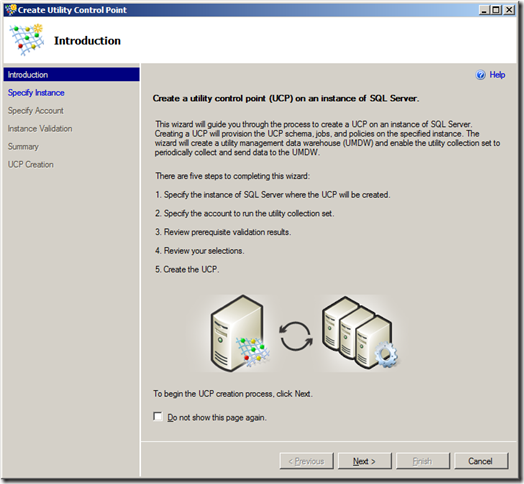
Clicking the Create a Utility Control Point link starts the following wizard:
Picture2

The first step is to specify the SQL Server instance that you want to designate as a UCP. This server instance will host the central system management data warehouse where the resource utilization and health data will be stored.

Picture3

Next you need to specify the account that will be used to run the data collection process. This must be a domain account rather than a built-in system account (you can specify the account that the SQL Server Agent runs as, but again this must be a domain account).

Picture4

Now the wizard runs a number of verification checks as shown here:

Picture5

Assuming all of the verification checks succeed, you’re now ready to create the UCP.

Picture6

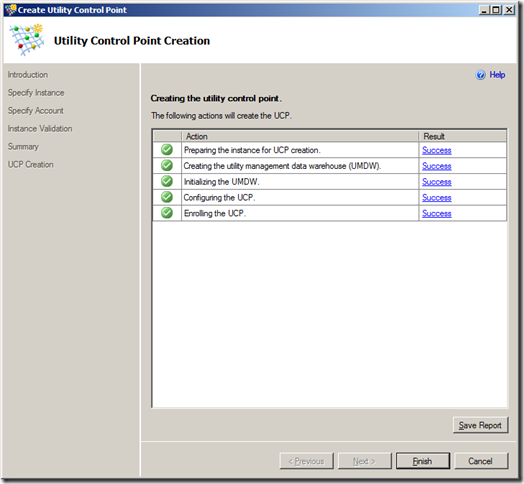
The wizard finally performs the tasks that are required to set up the UCP and create the management data warehouse.
Picture7

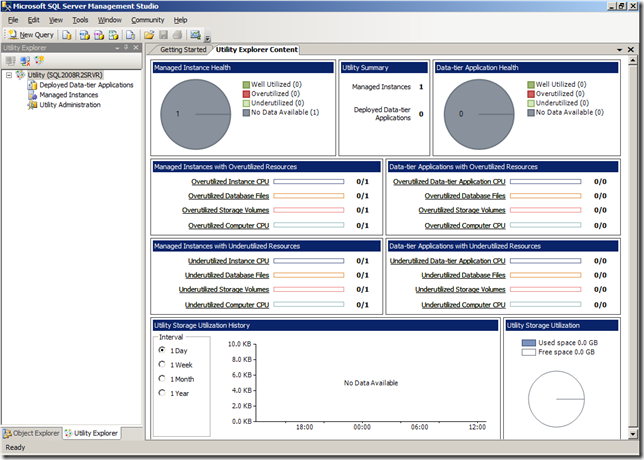
After you’ve created the UCP, you can view the Utility Control Content window to see the overall health of all enrolled SQL Server instances. At this point, the only enrolled instance is the UCP instance itself, and unless you’ve waited for a considerable amount of time, there will be no data available. However, you can at least see the dashboard view and note that it shows the resource utilization levels for all managed instances and data-tier applications (another new concept in SQL Server 2008 R2 – think of them as the unit of deployment for a database application, including the database itself plus any server-level resources, such as logins, that it depends on).
Picture8

To enroll a SQL Server instance, you can go back to the Getting Started window and click Enroll Instances of SQL Server with a UCP. This starts the following wizard:

Picture9

As before, the first step is the specify the instance you want to enroll. I’ve enrolled a named instance on the same physical server (actually, it’s a virtual server but that’s not really important!), but you can of course enroll any instance of SQL Server 2008 R2 in your organization (It’s quite likely that other versions of SQL Server will be supported in the final release, but in the November CTP only SQL Server 2008 R2 is supported).

Picture10

As before, the wizard performs a number of validation checks.

Picture11

Then you’re ready to enroll the instance.

Picture12

The wizard performs the necessary tasks, including setting up the collection set on the target instance.

Picture13

When you’ve enrolled all of the instances you want to manage, you can view the overall database server resource health from a single dashboard.

Picture14

In this case, I have enrolled two server instances (the UCP itself plus one other instance) and I’ve deliberately filled a test database. Additionally, the virtual machine on which I installed these instances has a small amount of available disk space. As a result, you can see that there is some over-utilization of database files and storage volumes in my “datacenter”. To troubleshoot this overutilization, and find the source of the problem, I can click the Managed Instances node in the Utility Explorer window and select any instances that show over (or under) utilization to get a more detailed view.

Picture15

Of course, your definition of “over” or “under” utilized might differ from mine (or Microsoft’s!), you can configure the thresholds for the policies that are used to monitor resource utilization , along with how often the data is sampled and how many policy violations must occur in a specified period before the resource is reported as over/under utilized.

Picture16

These policy settings are global, and therefore apply to all managed instances. You can set individual policy settings to override the global polices for specific instances, though that does add to the administrative workload and should probably be considered the exception rather than the rule.

My experiment with utility control point-based multi-server management was conducted with the November community technology preview (CTP), and I did encounter the odd problem with collector sets failing to upload data. However, assuming these kinks are ironed out in the final release (or were caused by some basic configuration error of my own!), this looks to be the natural evolution of the data collector that was introduced in SQL Server 2008, and should ease the administrative workload for many database administrators.